
Visual User Guide

Run a complete Gledhill Metadata workflow

This guide uses real app screenshots to walk through importing photos, selecting views, creating workflows, previewing names, applying changes, and configuring settings.

Current release v1.8.0

Step 1

Start on the Main screen

The Main screen is the command center for day-to-day work. Before any photos are loaded, the app gives you a clean drop zone and a Pick Photos button.
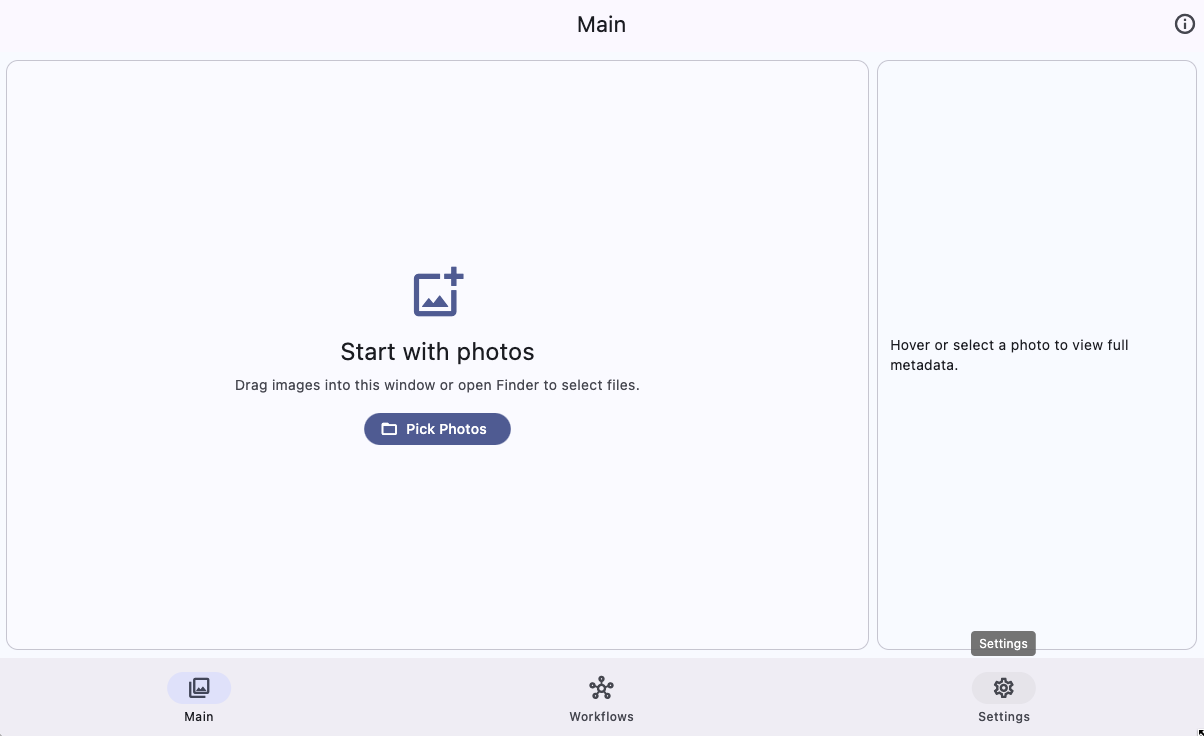
  • Use Pick Photos to open the system file picker.
  • Drag photos directly into the window when that is faster.
  • The top navigation keeps the app organized into Main, Workflows, and Settings.
Blank Gledhill Metadata Main screen with Pick Photos button
Main screen before photos are loaded.

Step 2

Choose photos from your computer

Clicking Pick Photos opens the native picker for your platform. Select one or more image files, then open them into the workspace.
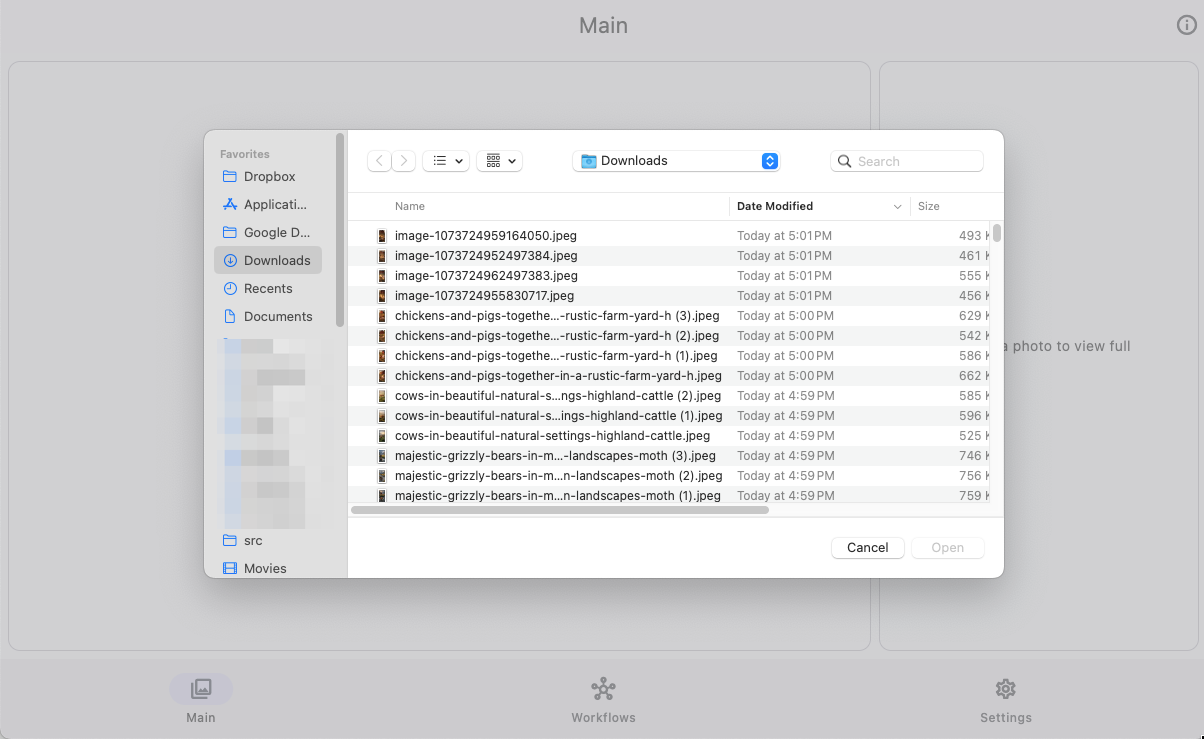
macOS note: If Finder does not open, check app permissions in System Settings. Drag and drop can still work even when picker permissions are blocked.
System file picker selecting photos for Gledhill Metadata
Select files using the native file picker.

Step 3

Browse and select the photos you want to change

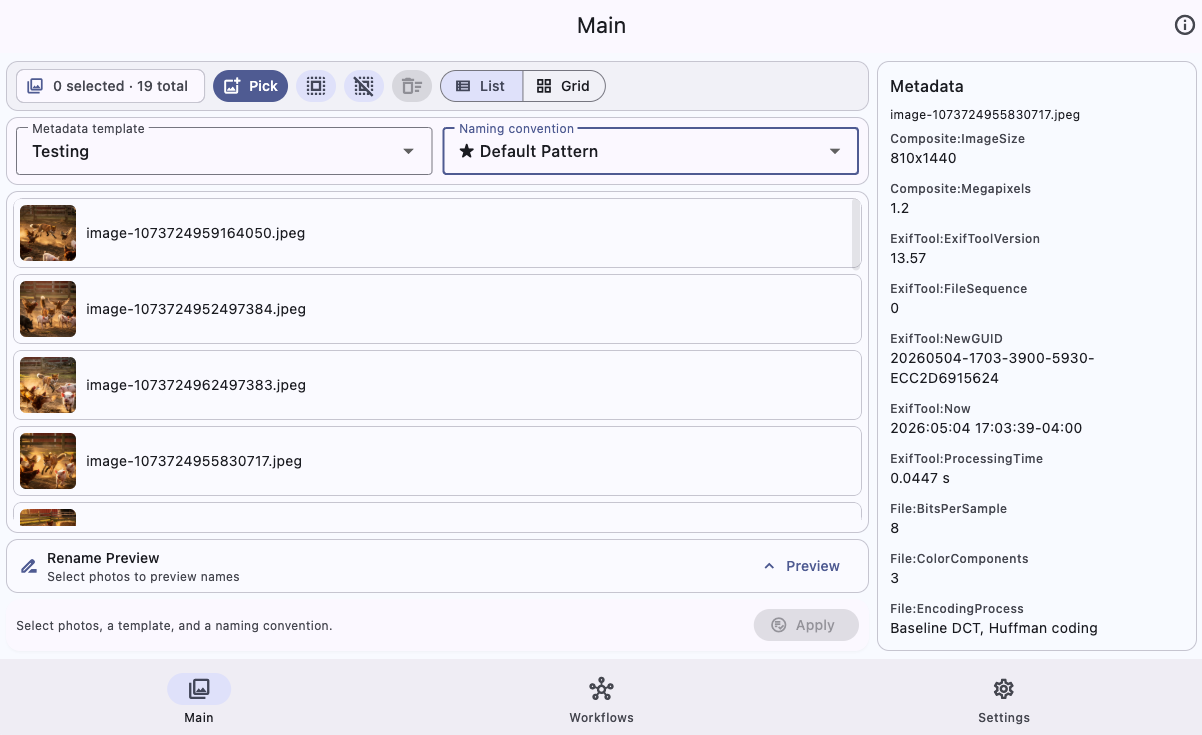
After loading photos, use either Grid view or List view. Both views support selection, focusing a photo to inspect metadata, and removing selected files from the current batch.
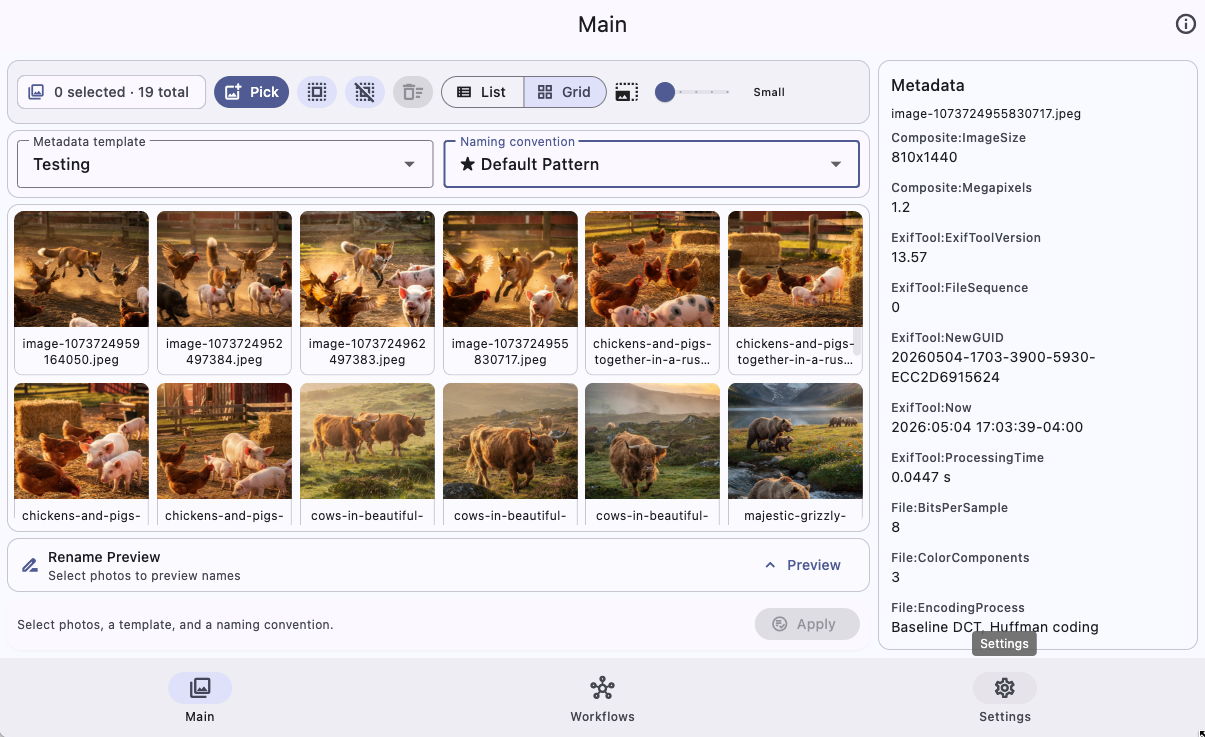
Main screen showing photos in grid view
Grid view is best when visual thumbnails matter.
Main screen showing photos in list view
List view is compact and useful for filename-heavy work.

Select All / Unselect All

Use the toolbar buttons or your configured keyboard shortcuts to quickly control the current batch.

Thumbnail size

In Grid view, use the small thumbnail slider to choose one of five sizes from Small to Large.

Step 4

Review the rename preview before applying

The rename preview shows how selected files will be named after applying the chosen naming convention. This is the final checkpoint before changing files.
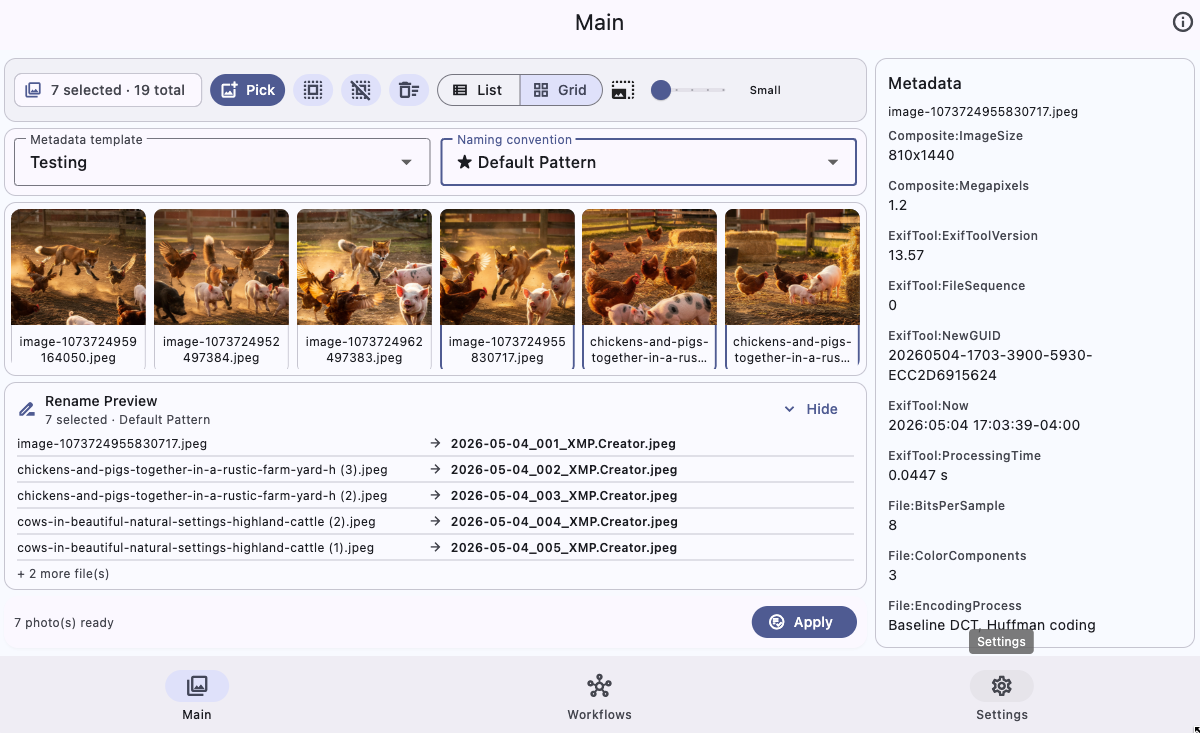
  • Confirm the original names and generated names look correct.
  • Make sure the sequence pattern prevents duplicate filenames.
  • Use the Apply confirmation dialog as a last safety review.
Main screen showing rename preview before applying changes
Rename preview shows what will happen before files are changed.

Step 5

Create and manage metadata templates

The Workflows page stores reusable metadata templates. Templates let you apply consistent title, description, keyword, headline, creator, and copyright information across selected photos.
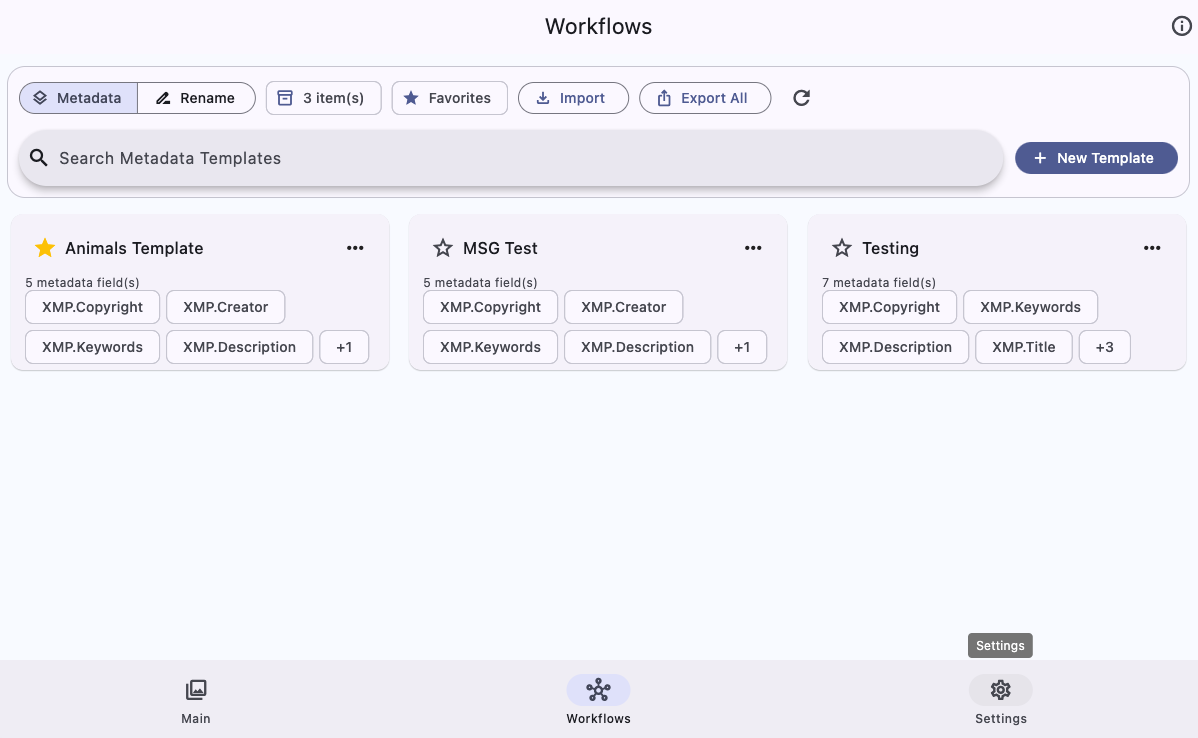
Workflows page showing metadata templates
Metadata template library with search, favorites, import, and export.
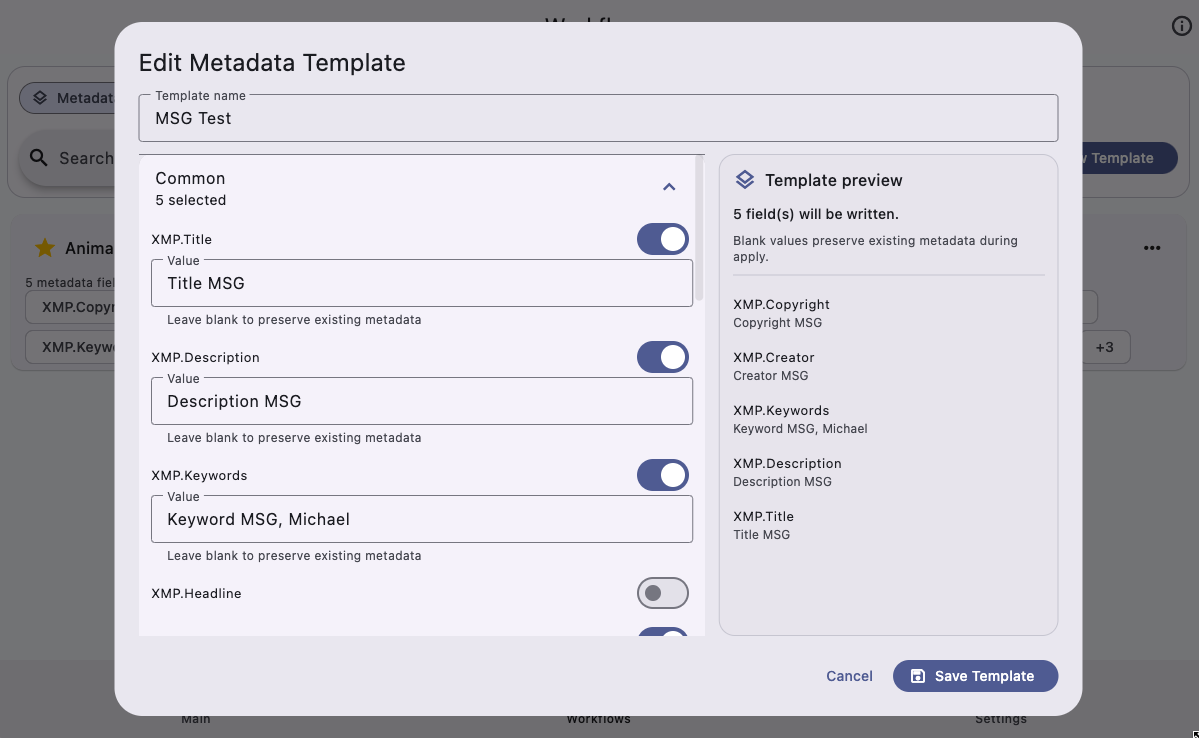
Metadata template details editor
Template details let you choose fields and preview what will be written.
Recommended field order: Title → Description / Subject → Tags / Keywords → Comments / Headline → Authors / Creator → Copyright.

Step 6

Create and manage naming conventions

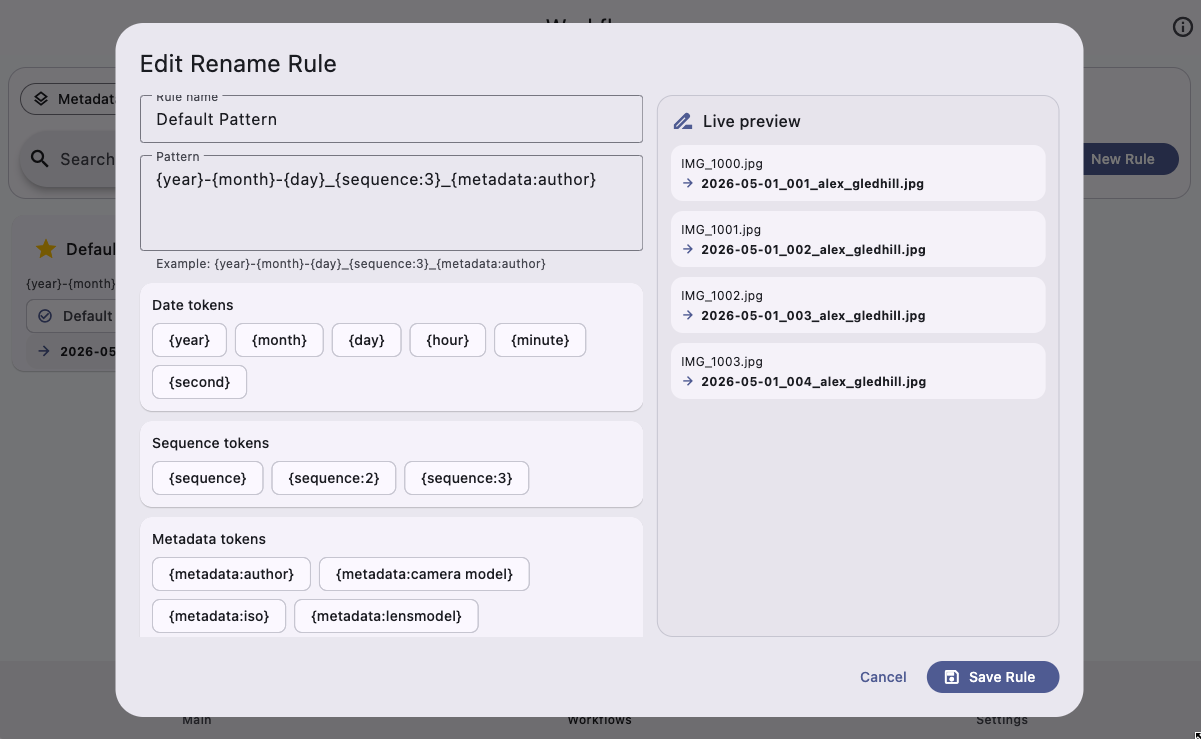
Naming conventions control how selected photos are renamed. A good naming pattern usually combines date, title or metadata values, and a sequence token.
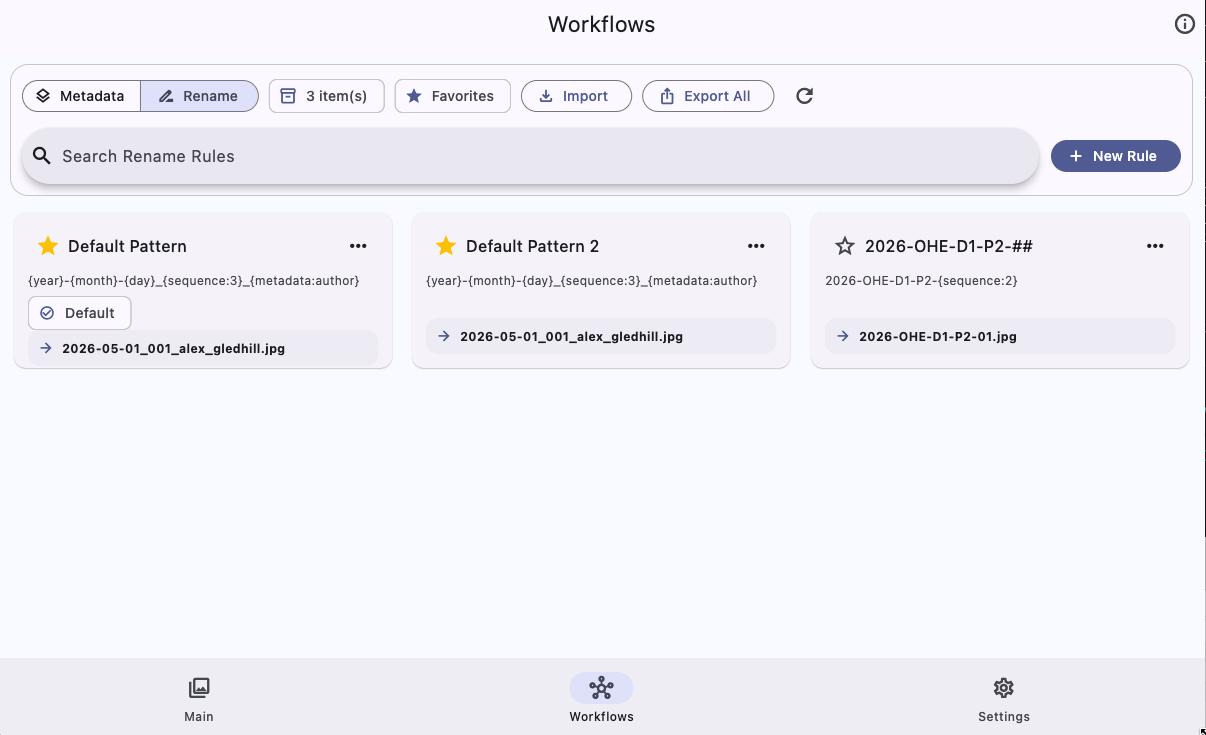
Workflows page showing rename rules
Rename rule library with favorites and export options.
Rename rule details editor showing pattern preview
The rule editor shows pattern guidance and sample output.

Use sequence tokens

Include a sequence token to avoid duplicate output names during batch work.

Set defaults

Use the three-dot menu on a template or rule to make it the default workflow.

Step 7

Configure defaults, safety, and shortcuts

The Settings page keeps your preferred defaults and quality-of-life options in one place.
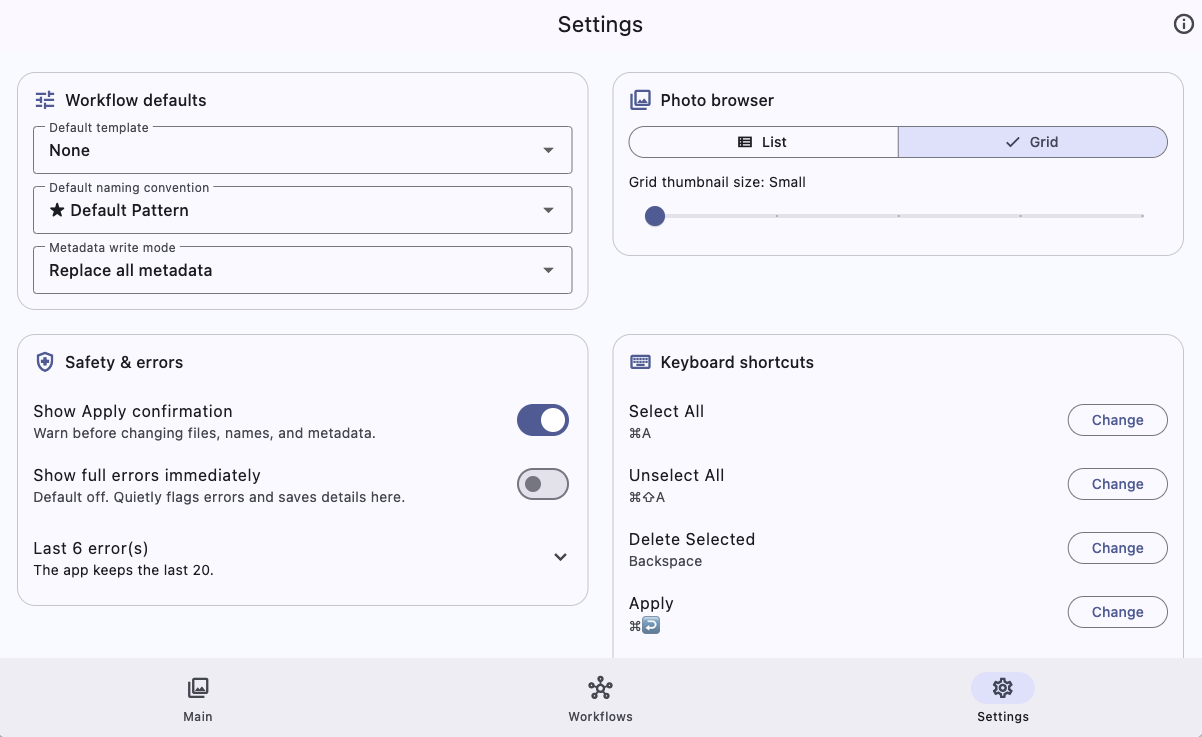
  • Choose the default metadata template and naming convention.
  • Switch between List and Grid view and set the grid thumbnail size.
  • Keep Show Apply confirmation on for safer batch operations.
  • Use Show full errors immediately only when you want detailed error text on screen.
  • Customize keyboard shortcuts for Select All, Unselect All, Delete Selected, Apply, and Pick Photos.
Settings page showing workflow defaults, photo browser settings, safety options, and keyboard shortcuts
Settings control defaults, safety prompts, error behavior, and hotkeys.

Final checklist

Apply changes safely

Before clicking Apply, pause for a quick review. The app is designed to make batch work fast, but file changes should still be intentional.

1) Photos selected

Only selected photos are changed. Use Select All or Unselect All if the batch is not right.

2) Template chosen

Confirm the metadata template matches the shoot, client, or archive workflow.

3) Naming rule chosen

Review the naming convention and check the preview for duplicates or unexpected text.

4) Confirmation accepted

Use the Apply confirmation dialog as your final “yes, do this” moment.

Best practice: For a brand-new workflow, test on copied files first. Once it looks right, save the template and naming convention as favorites or defaults.